




Learn how you can get your home organized with my easy step-by-step organization course. My course is full of organization ideas as well as home organization tips and tricks to get your life and home organized and keep it that way.

ONLINE DECLUTTERING COURSE
For the past several months I have been putting together my Online Organization Course, The Balanced Home. I am excited to teach you my decluttering and cleaning process. These processes also teach you how to create simple routines and cleaning schedules which allow you to naturally maintain your clean and organized home.
No need to hire a professional organizer, or live with the clutter because you will have the skills and learn how to overcome any mental barriers or fears you might have to get started!
Stop Drowning in Household Clutter
Transform your space without the overwhelm. Join The Balanced Home Course for a step-by-step system to get your home organized and keep it that way for good.
Learn More & Join Today →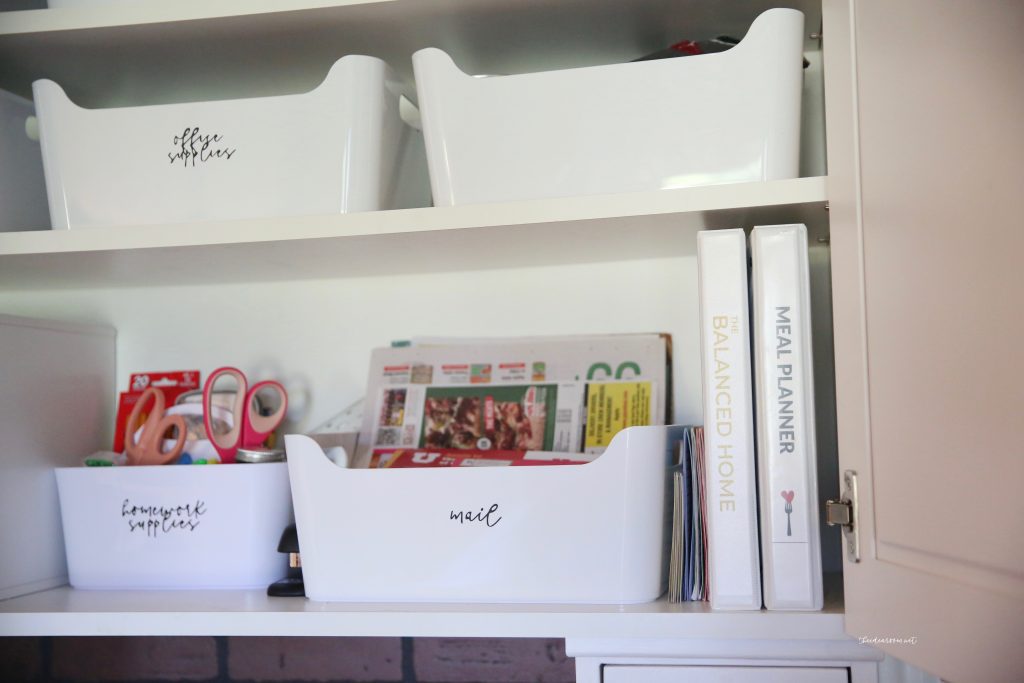

WHAT DOES THE ORGANIZATION COURSE COVER?
The Balanced Home Organization Core
($1,000 Value)Contains my core Decluttering and Organization Processes, which shows you how to:
- Learn how to declutter and organize your home–by learning processes and techniques that really work!
- Deal with stuff you don't know how to get rid of
- Understand what qualifies as hoarding
- Understand how to overcome hoarding tendencies
- Deal with your junk room or junk drawer
The Tools
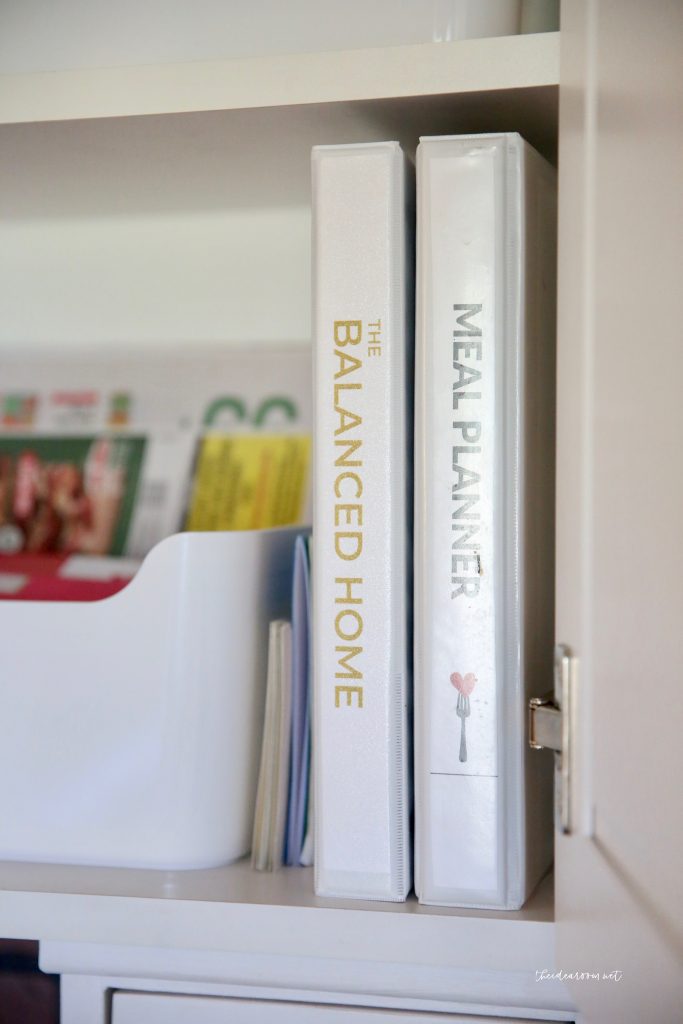
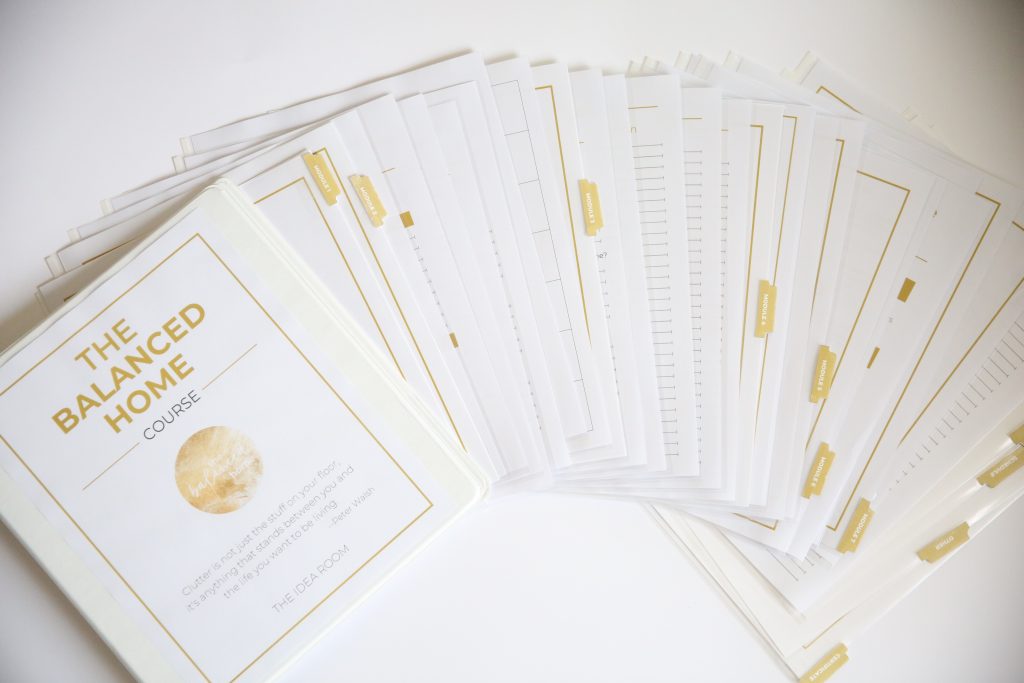
- Workbook, Resources, Labels, and More ($250 Value). Contains everything you need to help guide you through each lesson, including:
- An easy-to-follow workbook to guide you step-by-step through the lessons
- Printable Labels
- A vision sheet for your home
- A working checklist of tasks you can accomplish in 30 minutes or less
- Shopping and To-Do Lists
- Monthly Calendar and Weekly Schedule
The Mental Foundation
The best processes to overcome mental barriers from Tony Robbins and Dean Graziosi's Mastermind Course ($200 Value). Helps you to find the time, the energy and the motivation to organize your home by:
- Discovering your “true, internal why” -> what motivates you to want an organized home
- Helping you clearly identify what is holding you back from success
- Teaching you how to organize your schedule to create new pockets of time
- Helping you discover what is most important for you to accomplish with your time, as opposed to just urgent or habit
- Helping you cut out the things that aren't important and identify gaps in your schedule you can dedicate to working on your home
Your Ideal Home
The best processes to set and achieve your vision by breaking it down into actionable steps ($300 Value). Teaches you how to break down an overwhelming project into small, manageable steps, by:
- Clearly defining your goal and vision for your home
- Learning how to evaluate specific rooms and identify what you want to be improved
- Identifying specific, easy to complete tasks in each room that will contribute to your overall goal without overwhelming you
- Getting your family or others involved in the process
Cleaning and Maintaining
The best processes to clean and maintain your home after it has been organized ($200 Value).Teaches you how to maintain your home once it is clean and keep it organized, by:
- Providing you with the basic cleaning routines you need to naturally stay in control of your home
- Teaching you my amazing “Ten-Minute Clean-up” process, which allows you to clean an entire floor / room in ten minutes or less!
- Showing you how to establish routines with your kids and other members of the family
- Sharing important resources such as chore cards, favorite cleaning products, and a deep-cleaning checklist, and more
- Explaining the laundry routine we use in our home to get our laundry done every week without even thinking about it
- Teaching you how to deep clean your home after it has been decluttered and organized
- Showing you how to help the other members of your household be on the same page and not “unclean” your home
During the course, we will:
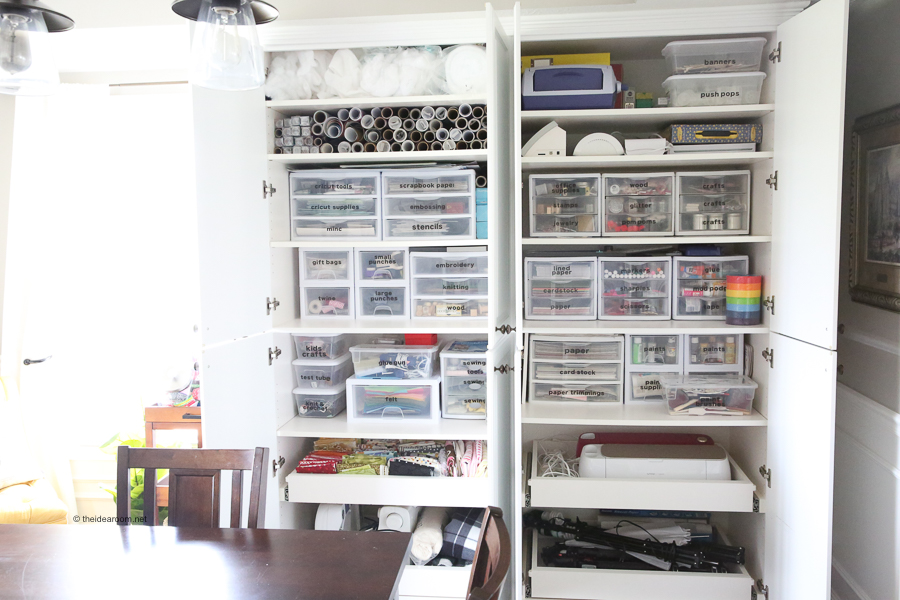
- Show you the process of how to go throughout your home decluttering, cleaning, and organizing. Then you can take this process and go throughout all the rooms in your home–including the bathrooms, kitchen, craft room, home office, basement, entryway, playroom, garage, attic, and all other rooms in your home–cleaning and organizing.
- Clean out and organize not just the rooms themselves, but organization spaces such as closets, shelves, drawers, and bookshelves.
- Learn how to properly use organization equipment, such as bins, drawer organizers, storage bins, food storage containers, lids, and baskets.
The Private Balanced Home Community
(BONUS – Priceless). Provides a community that you can go to whenever you need a place where you…
- Seek inspiration and ideas from others
- Receive support and motivation from others
- Share your successes and see the successes of others as we all work towards finding balance and clarity in our homes.
- Can ask questions and let me know what you may still need help with so that I can continue to cater the course to your needs


What Do People Have To Say About My Organization Course?
“This course was instrumental in helping me organize my space as well as my time. As a busy mom, I have a better grasp on what my days need to include so that I can enjoy my family rather than spend my time spinning my wheels cleaning up after everyone.”
“The Balanced Home Course helped me to be the “professional organizer” for my family! Simple steps to follow, check lists, printable labels, suggestions and worksheets will keep you on track to successfully maintain your own balanced home.”
“I am pretty sure I have solved more issues with the seven layers and clarity tool than I have in 6 months of therapy!! I think this course is going to help much more than my home. Thanks Amy!!!!”
When I realized I had been overcomplicating the idea of organization, that simplifying was a key component, then things really started to fall into place!”
When I realized I had been overcomplicating the idea of organization, that simplifying was a key component, then things really started to fall into place!””
HOW TO GET MOTIVATED TO ORGANIZE YOUR HOME
HOW TO OVERCOME FEARS AND MENTAL BARRIERS
I asked and these are the things that are holding you back from getting started! I made sure my course helped you overcome your specific fears and developed processes to address each of the concerns below. Have you ever had any of the same concerns?
- “I don't have the time.”
- “I don't know how to break it down into manageable chunks.”
- “How do I balance other activities?”
- “I don’t have enough energy / motivation.”
- “I'm overwhelmed and don't know where to start.”
- “I'm scared / unable to commit.”
- “I don't trust myself.”
- “I don't have the confidence I will finish.”
- “How do I maintain / keep on top of it?”
- “I have a hard time with inconsistency / finding balance.”
- “I'm afraid of quitting too soon and having it be a mess.”
- “How do I build the habits and routines?”
- “Keeping it clean and organized”“Staying focused and not getting distracted.”
- “What if I have physical limitations.”
- “I don't have the supplies / resources / money (i.e. containers etc.) / storage space.”
- “I don't want to part with things.”
- “What Do I do with all the stuff? Donate? Kids?”
- “What if I need it later?”
- “My family has stuff they want to keep.”
- “Family is not being helpful or even counterproductive… How do I get my family on board?”
- “No sense of design / vision for what I want.”
- “Lack of knowledge.”
- “Afraid of not doing it right.”
- “Being okay with not having it perfect.”
STILL NOT READY TO BUY?
Because I know that sometimes it can be difficult to take that initial leap of faith, I wanted to give you something that would allow you to get your feet wet a little, something that you could access RIGHT NOW. I think you'll like it. I've opened up a “sneak peek” section of my course, where you can access one or two of the lessons that are a part of The Balanced Home Course. If you click the button below you will be able to create your own personal account / log in for the course and access the “sneak peek” videos.

OTHER ORGANIZATION PROJECTS
If you are interested in taking a deeper look into some of the spaces in my home, check out the following posts!


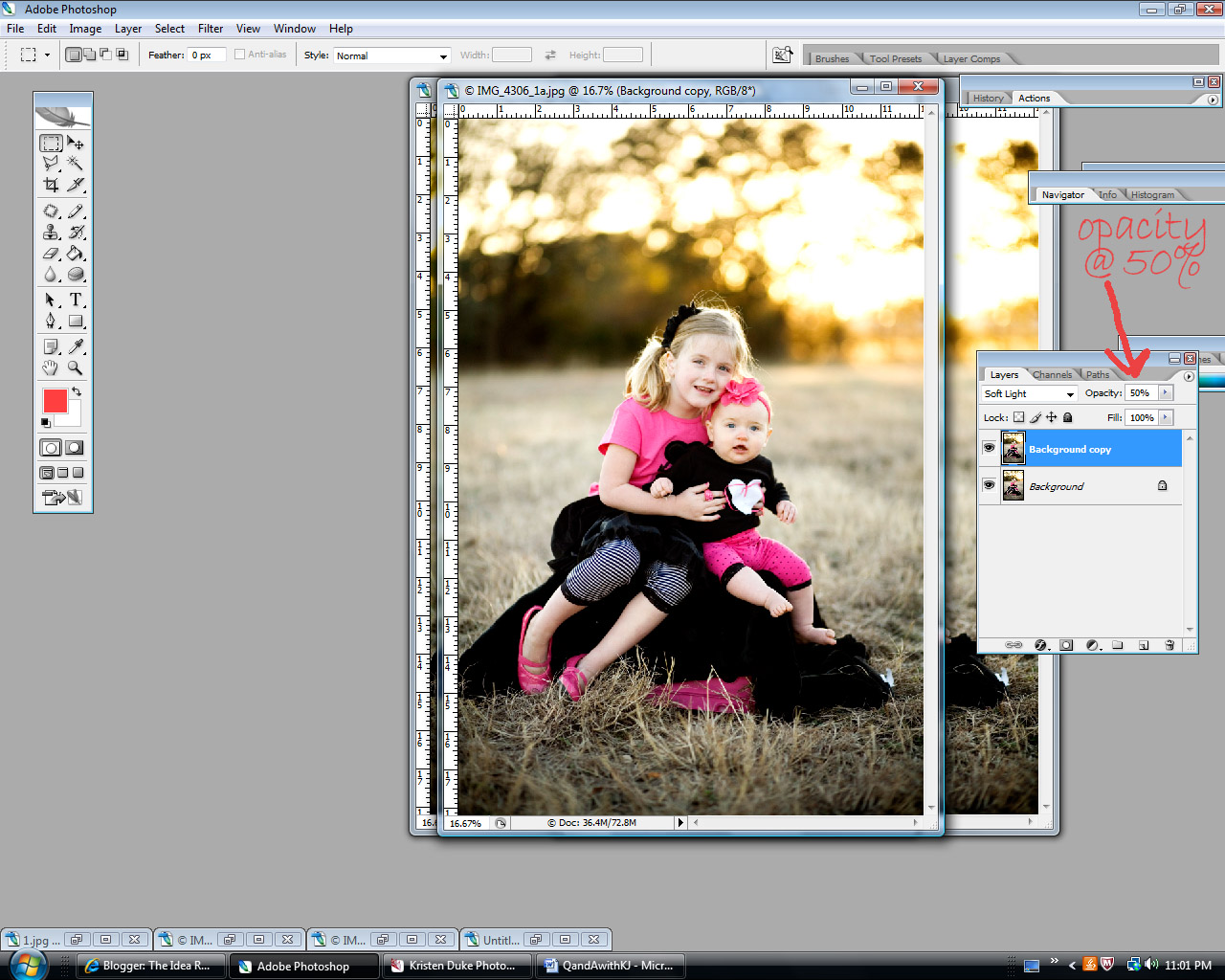


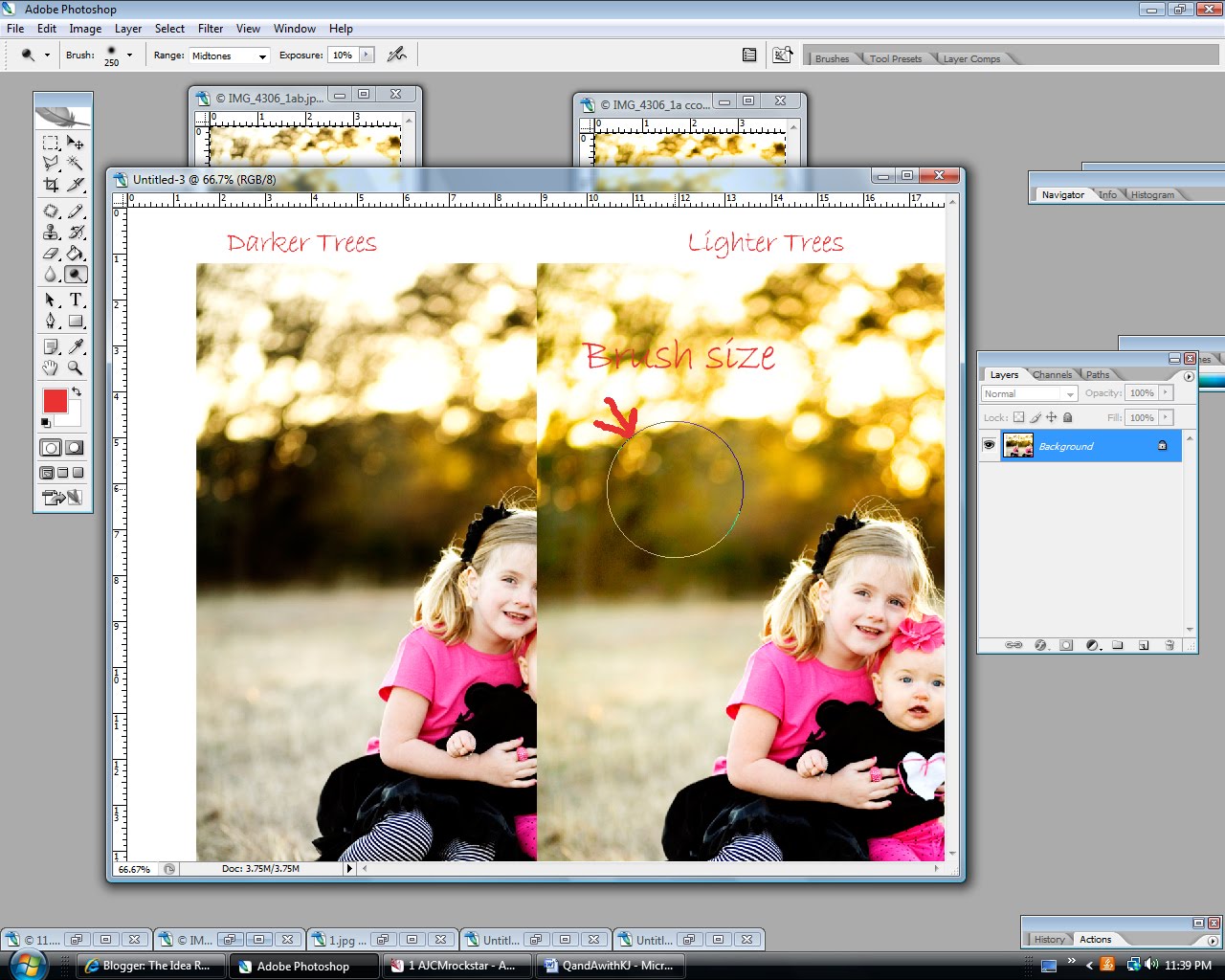

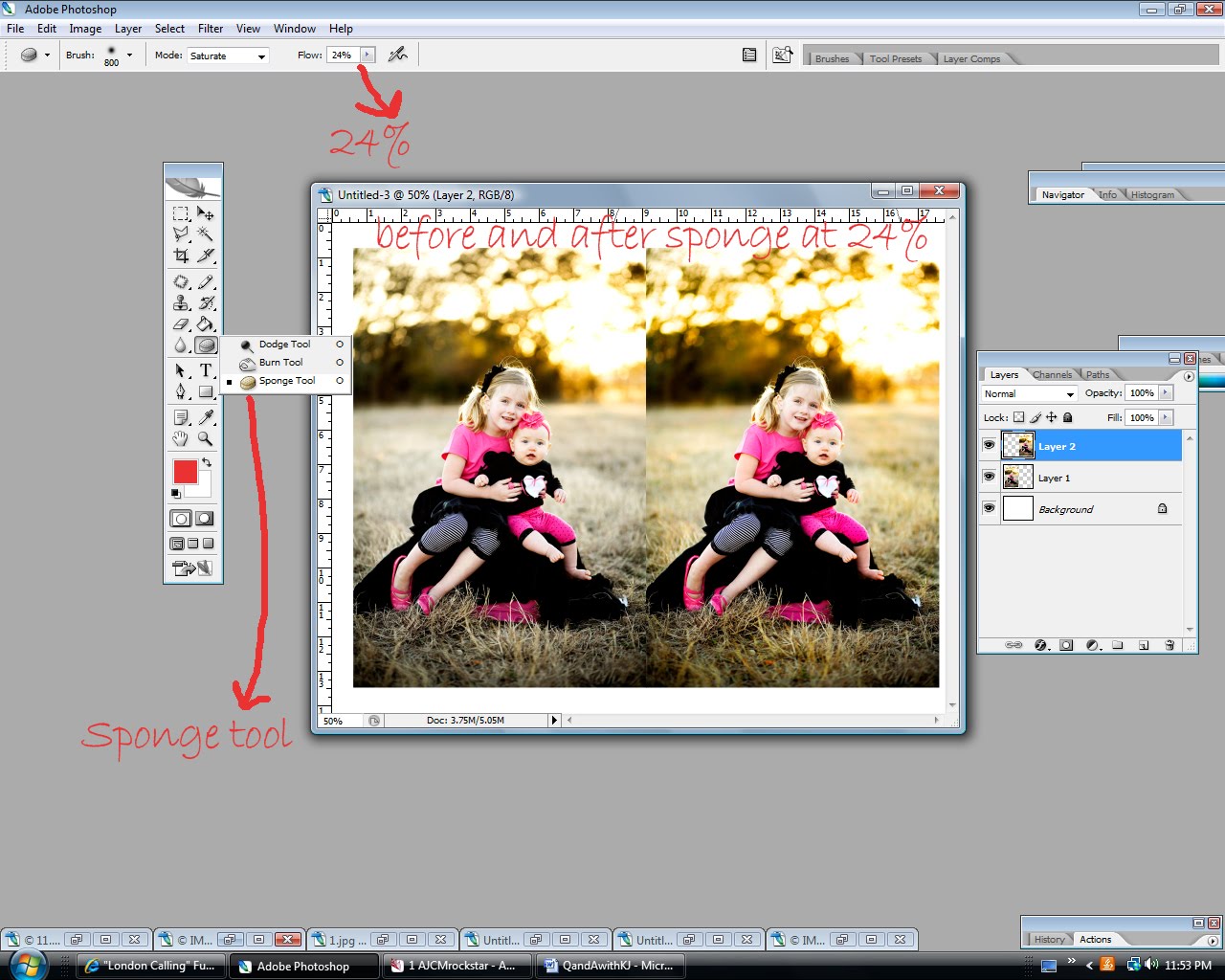




Thank you thank you!! I use soft light ALL the time (often paired with "screen" to lighten it, but I might try lightening it first next time) but I never use dodge and burn there and I didn't even know what sponge did!! Thanks :) Oh, and I use PSE, pretty sure they all have soft light!
Nice tutorial, Kristen! Thanks for sharing your PS knowledge! I currently have PS7, but have the CS2 upgrade… just haven't done it yet. PS is a powerful program… way above my head. I completely understand the "blah, blah, blah" you're talking about. However, you explained it perfectly! i got it. Now, I will go play. My daughter is making her first communion May 1st. I would like to take her out to get some photos of her in her dress. So, I think some PS tweaking will be in my future. I'm nervous!!
amy
Thanks that was AWESOME. I never knew what the sponge tool did until now. (I've been trying to teach myself photoshop for awhile and it's HARD!) I would love to know how to swap heads in photos. That was a great tutorial.
I know nothing about photo shop I have borrowed it to see if I like it I spent all day on my behind playing with it it is fun never have done layers yet. If you pop over to my blog you can see the old truck I have been playing with.
Thank you! This is such a great tutorial! I'm so excited to try out some new things!! :)
AWESOME tutorial! Thank you very much!
Thank you so much for this tutorial! I have been wanting to learn how to turn the photos from my point-and-shoot into fabulous eye candy, and this helps a lot! If there is anything else you want to teach me, I'll be happy to learn :)
Thank you. I use PSE and I feel like I am ALWAYS learning new stuff, which I love!
Thanks for the tutorial. I have had Elements 6 for several years now and it fits my needs perfectly. And, just so everyone knows, actions work in PSE 6 just fine. In fact Pioneer Woman and several other places online have actions for Elements lower than PSE 7.
Never knew about the sponge, awesome! I would personally love to learn more about RAW. I have many photographer friends who shoot in it and they can't say enough good things about it. What makes it so different from shooting in jpegs? I'm too nervous to try it before knowing at least a little bit about it.
Kristen, thanks again for all the great info! Another post to be printed out as a reference. We will be getting Aperature with our new Mac; I'm going to play with it a bit first to see if I think i will still want Photoshop.
Could you point out the difference between the 3 pictures with difference opacities in the Soft Light Layer? I've been staring at them and I really don't see much of a difference between the 3 and I'd love to be educated as to what I should be looking for.
Thanks!
I am just starting to learn all of this and am LOVING your tutorials! Please keep them up!!
Thanks for your dodge tool tips! I'm excited to play with it now. I would love help on head swapping if you get a chance!
Thank you for the amazing, detailed tutorial. I would love to learn how to do "selective colorization" (I think that's what it's called). What I mean is, take a picture and have it all be black and white, except for maybe one item in it, like a flower or hat, that you leave in color. Hope that makes sense. Thanks!
I have been trying to figure out my new Photoshop program watching hours of tutorial and still not getting it. Thank you for making that simple. Can you please show head swap next??? Thanks
thanks for the great tutorial! i am like you with the whole wanting to do it all now thing:) i do quite a bit with editing and i am trying to decide if the next step for me is to shoot in RAW but i dont know if that will be opening too big of a can of worms for me. can you go into a little more detail on the benefits of RAW?
Wowzers! Great tutorial… Now a request: how did you become such a succesful blogger? I am sure it was thru these fabulous posts. I am your newest follower.
Fabulous!
I, too, would like to know more about RAW. I shoot between 200-300 images in a session, and now I am curious as to why you choose RAW over jpg. Any insight would be GREAT!
This tutorial was fantastic! The screen shots made the instruction so easy to understand. Thank you!
You know what I would love to learn? How to make a watermark for my photos. Something fairly simple and tasteful.
I use CS4 and I have never used the sponge. I think I need to try it now though. ;)
This is the first time I have used the dodge, burn, and sponge tool. Thanks for this great tutorial! I love reading your posts and look forward to future ones.
Thank you so much!! I currently use CS2 and pretty much play with layers and just feel around. Your tutorial was written perfectly for my skill or understanding level. ha!
Thanks again!
Great and useful post. I am a dabbler in photography and am still trying to figure out my camera–let alone photoshop. Appreciate it. Any other lessons you can offer would be read and appreciated.
Kristen,
Seriously! I can't thank you enough for posting this. I have been trying to do photography for a year now and am STRUGGLING with photoshop. I use elements 6 and they do have the dodge, burn and sponge tools, but I have only used the burn tool. I too shoot my stuff in RAW (love it).
I would love to learn head swap now – or anything else for that matter that you are willing to share. Any hints on how to get catchlight in someone's eyes every time?!?
You are a livesaver. Thanks again.
Thank you, all! So glad I could share the sponge tip with you.
I worried all my diagrams would be passed over (if it were me and I knew little about the program, I might have gotten overwhelmed).
Yes, Pioneer Woman has "actions" for elements. They are used differently, but nonetheless more options than there used to me. Just google actions for elements.
Cassi–RAW is a larger file, and you can tweak the RAW image and not lower the quality like you do when you tweak and save a jpg file. I can also pull up 10 shots that were taken in the same setting that need a little tweak and do that to all at once vs. one at a time with jpgs.
Joan–what I love about soft light is that it is a minor difference. Its true, the 3 do look similar, but look at the skin tones and see a bit smoother and softer. Also the trees have a bit more of a glow to them.
I think next week I will do a more mellow post for those wanting tips instead of the heavy reading.
Elizabeth–I don't really do selective color, and I'm not a big fan of it.
Tricia–watermarks are with a brush tool, I can do that later on for sure.
Adrian, thanks for the control J shortcut, didn't know that, and happy to not have to go ALL the way up to the bar to duplicate:)
Susan E–working on catchlights for my next post.
Lets see…Questions…
I love this! I've had several unsuccessful head swaps. Could you do that if you get a chance?
THank YOU for posting all those screen shots. That was SO helpful. I am a beginner at photoshop and this helped immensely. I have PSE 8 which you can get at Sam's for around $75. :) In case you wanted to know. I think I will eventually upgrade but I really am satisfied with what PSE 8 offers right now. I usually just mess with the levels and call it done most of the time. I really would like Lightroom…at least I know other photographers that swear by it. What do you think?
Thanks so much! I need to figure out Photoshop but don't have the time right now. Great tutorial!
XOXO
Jen
Oh…and please, please do watermarks. I will kiss your feet if you do…well you know what I mean. :)
This is going to help me so much! I do fairly well in Photoshop and can usually get what I want, but lately I've been wanting to learn those mystery tools…dodge/burn/sponge. Yeah!! Thanks a million!
Awesome, thanks! I just got a new camera and don't know what to do next. I've had elements 4.0 for a few years, and never really messed with anything on it at all. If you have time/inclination, you can check out what I did with this info, thanks again!
Go here if you feel like it :)
Excellent tutorial. I just wanted to let you know as a fellow actions lover that Barb Uil has some really awesome ones which I use all the time. (http://www.ittybittyactions.com/)
I've got the 52 action set and it is heaps of fun. There's also a LOT of free actions around. I've found some great free ones which make polaroids, black and white, mosaic type things, etc. You probably know this but thought I'd mention it anyways.
Cheers! :)
P.S. I think that's awful that someone is trying to dupe people into thinking one action could make any image look great. Post-processing can only do so much. If you don't have a good image to begin with (correct white balance, exposure, framing, blah blah) then no amount of post-processing is gonna save it. Sorry, just miffs me that someone would try to con people like that.
I love photography and thanks for the post!
Following you from MBC!
Hope you also visit and follow my blogs:
http://www.dangzter.com
http://www.jillandjolo.com
Keep blogging!
Show us how to TEXT on the image!!!!
I love these posts!! Thanks Kristen for sharing!! I want to know more about RAW!!! I can't thank you enough for sharing!!!
wow wow wow!
this was totally awesome!
i have been playing with layers and actions for awhile now, but never branched out beyond what i "know".
thank you for awakening me to the dodge tool! for some silly reason, i hadn't known what that tool does! yay!
thanks for sharing! Photoshop, here i come! =)
What a thoughtful tutorial. I love it when people are willing to share what they know, especially when it took a long time to figure it all out. I only have a point and shoot camera and picasa (none of the fancy gizmos) but I love learning and hope this will all make sense to me someday soon.
Thank you, thank you and thank you for posting that. I will be back tonight, when baby is sleeping to go step by step with my photos. Love it!!!
great tutorial, I have PSE8 and PS7, I would love to upgrade but it's in the near future. Whatever I can't do in PSE I just switch over to PS7 and right now it's working okay.
I would love to learn how to head swap. With photographing 4 children I am always in need of a good head swapping. I just have no clue how to do it.
Thank you! That was such a great tutorial. I am self taught and don't understand some of the things involved with PS and get very frustrated! Your tutorial cleared some things up! Thanks again!
Such great explanations! I would love to know how you edit more that one RAW photo at a time. Do you use Lightroom for that? I would love to know if you use any free actions and which are the best. How do you save all your pictures? My laptop is totally full, and I am not sure the best way to keep all my photo's in a way that is easy to keep adding to. (Right now all my pictures are in iPhoto Library.) Thanks for all the time you put into this post!
Thanks so much! I would like to know how to do text on an image, and also how to do a watermark. No idea how to do those. Thanks so much for sharing your wisdom!
Thank you so much for taking the time to post all of those laborious screen shots! It really helps me understand how to approach a photo.
thank you! thank you!
Autumn :)
http://www.tumtales.blogspot.com/
I'm totally new at editing in Elements. I've had it for ages, but never actually tried to edit anything. I've really been missing out! I'd love to see some hints on brightening people in pictures. We have some almost-really-good pictures of people where the background is the right colors, but the people are then very dark. I'm not coordinated enough to select the people out to brighten though…any other hints?
Thanks! Very helpful!
I want to learn everything you know in PS. I'm sure this post was awful for you, but the rest of us learned so much from it. Very useful
Thanks once again! I'm going to try it right now. I feel like I'm taking a college class. I always bring my notebook to take notes and then I go I 'do the assignment.' I had fun shooting in the manual setting the other day. :) Is there a way to do a blog on just your tutorials, I just feel like I have to search each time for your tutorials, just a thought. I love them!!
Thank you for this. I'm loving all your tutorials. I do shoot in RAW but I don't think I understand fully what I am doing… especially the part about batch processing a bunch of images. I'd love a tutorial on RAW images some time.
Hi!
I saw your pics at Pinterest and I ended up here.
I love your tutorial! Thanks! It´s so simple and clear!!!
Kisses and blessings.
Mirys
http://www.diariodos3mosqueteiros.blogspot.com
Just came across this tutorial and have to say it
Doing it this way your making your files huge with unnecessary information and doing it the “hard way”
DONT duplicate the layer ! its unnecessary
add an adjustment layer
in the layers palette click the half black half white circle at the bottom – in the pop up menu choose Levels
do your levels adjustment
change the blend mode to soft light or whatever you decide you need
if there are bits that need the levels removed or lowered ( like the trees) on the mask that comes attached to the levels layer ( the box to the right of the half circle layer in the palette) click there and then use a black brush ( at the opacity of your choice) to “remove” the adjustment
if you make an error it doesnt matter… paint it back in with a white brush
this is why you need to use masks
you never LOOSE the info/adjustment thats you’ve made
This is specifically for photoshop, I dont have elements so I dont know if they have adjustment levels and masks ( but some have told me they do)
ITA with Ebony, you absolutely need to learn how to use layer masks. If there is one concept that all people who use Photoshop should know it’s how to use layer masks. They are not difficult to understand and they will make your life SO much easier!
HI Kristen
I would like to know if you do any one-on- one session on photography.. especially on photoshop. I bought a PS 10 after a got my Rebel 2 a few months ago and I don’t know how to use it yet and with a little baby I have little time to play with it. Please let me know.
Thanks a lot.
Candy
Omigod, I’ve been using photoshop since it came out and never really understood dodge and burn. Thank you!!!
Thanks for this awesome tutorial. I did notice while using the sponge that you forgot to tell people to change it at the top of the tool bar next to opacity that it can be saturation or desaturation.
THANK YOU so much for this, I am sooo photoshop slow. This was perfect for me and so clear. I pinned this post thanks!
Found you from pinterest. Thank you for the great post! :) It was very helpful!
Hey! Thank you for your post. I am just learning about all of this and would love all the help I can get! I currently have a full-time job but was wanting to get into photography to see where it would take me!
I also have the CS2 and am just beginning to use it. I am a new photographer and am loving it. Thank you for this new tool I can use with my clients’ pictures. I would also like to know more about shooting in RAW. If you have a moment. Thank you again.
Happy Thanksgiving!
I just found this post from Pinterest. I still use CS2 as well. I really appreciate this tut! Dodge, burn and sponge are three tools I have never used before. I’m going to play with them now!
I love playing around with photoshop and seeing all of the amazing things that it can do. Great post for helping others get better photos.
In my opinion, the faces in the “after” photo are too over-exposed. The grass on the left side behind the children also looks over-exposed. I would bet the histogram would confirm this. The grass looks dead. It would be better to take the children and put them on a better background.